 QuantiphAi

File Explorer
The Windows file manager you know, down to the last detail, working on your Mac files.
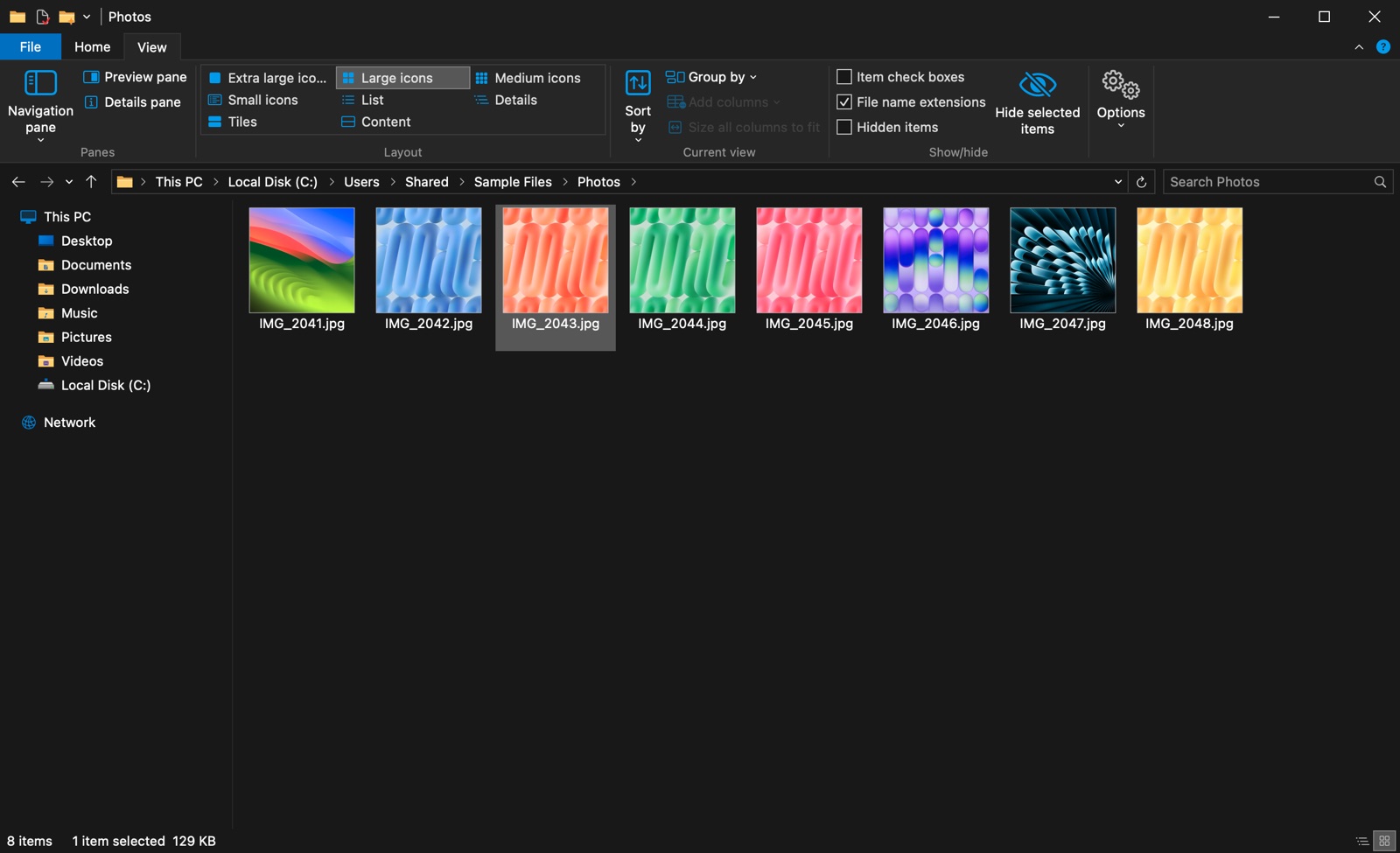
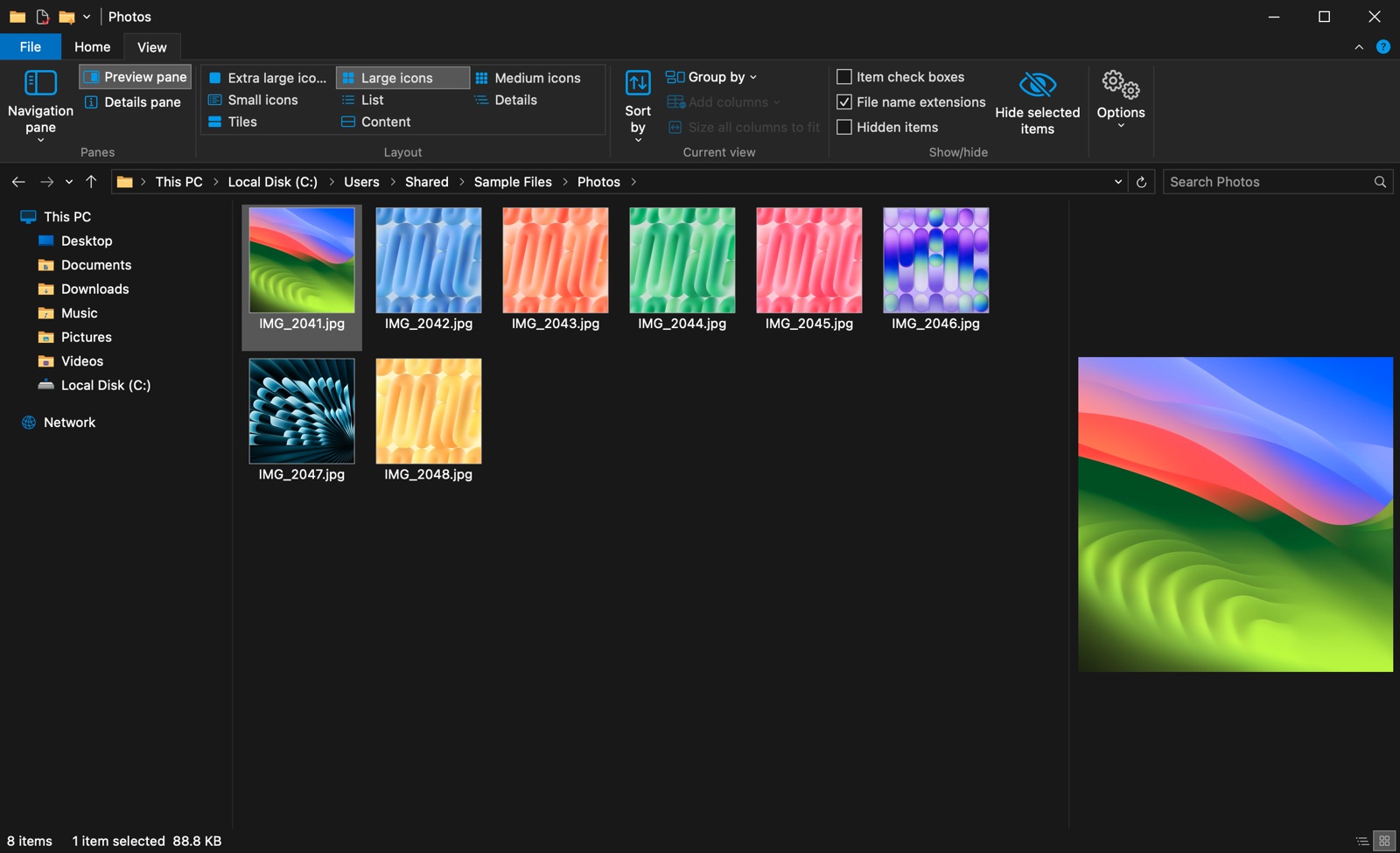
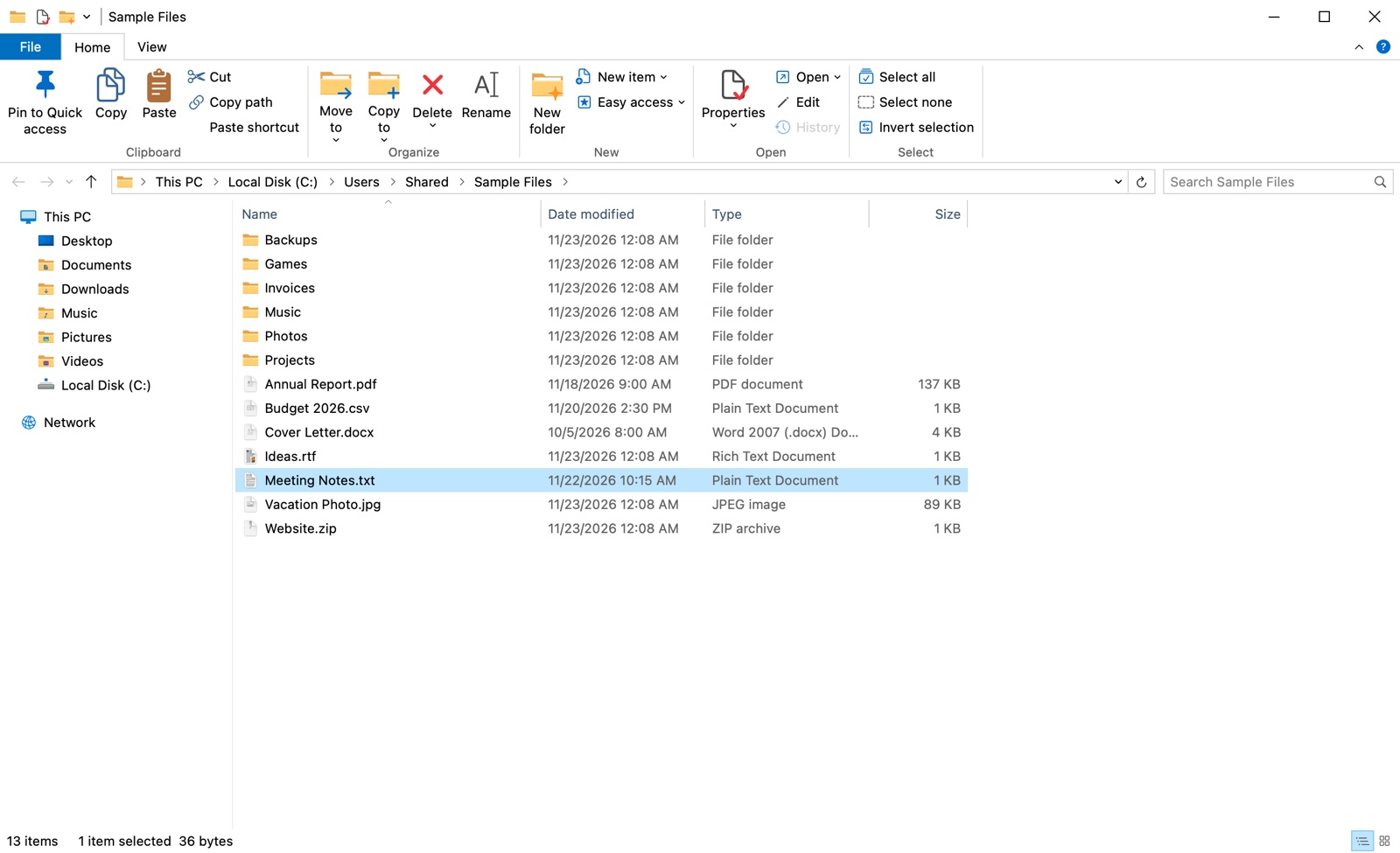
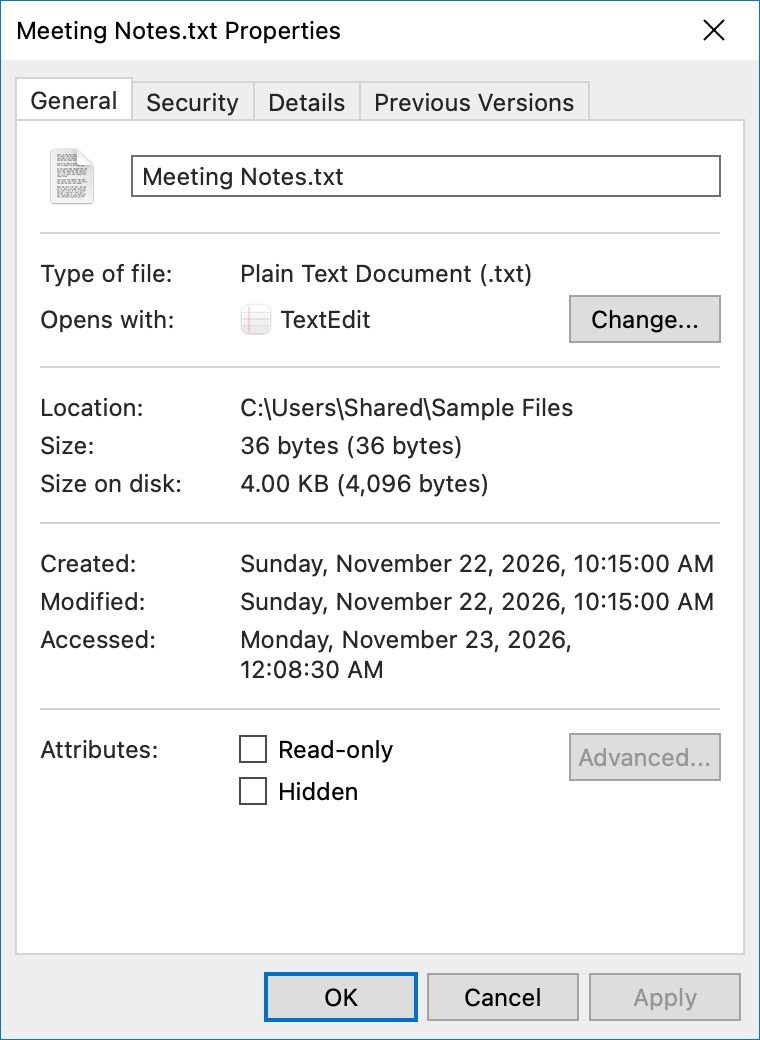
File Explorer is a native Mac app that recreates the Windows 10 File Explorer: the title bar with minimize, maximize and close, the ribbon, the breadcrumb address bar, the navigation pane, all eight views and the right-click menus. It works on your real files and drives, and Finder stays exactly as it was.
About 2.8 MB · macOS Sonoma 14 or later · Apple Silicon and Intel · Signed and notarized by Apple. Installation steps are below.
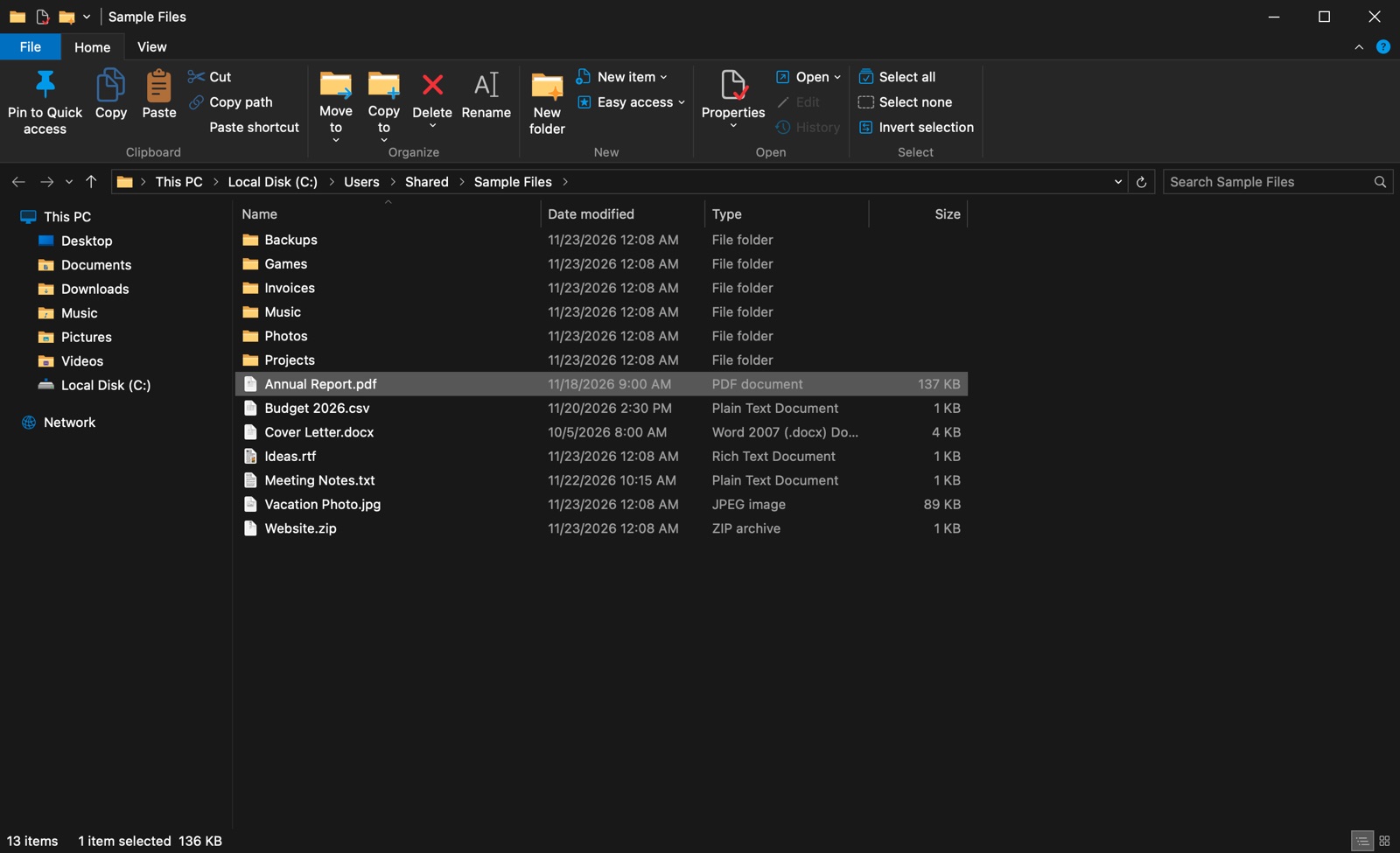
Looks like WindowsEvery view, pane and dialog you remember
Every view, pane and dialog you remember
Download & installSet it up in under a minute
Set it up in under a minute
Drag to Applications
In the window that opens, drag File Explorer onto the Applications folder.
Open it
Double-click File Explorer in Applications. It's notarized by Apple, so it opens with no warning.
Click Allow
The first time you open Desktop, Documents or Downloads, macOS asks to let File Explorer see that folder. Click Allow.
The menu bar folder
- A little yellow folder in the menu bar brings File Explorer to the front; right-click it for your folders and drives
Show the ribbon
- Click Home or View. To keep it open, click the small arrow at the far right of the tabs
Uninstall
- Right-click the menu bar folder, turn off Open at login, choose Quit File Explorer, then drag it from Applications to the Trash
FeaturesEverything Windows 10 File Explorer does
Everything Windows 10 File Explorer does
The real Windows look
- Title bar with — □ ✕ and the Quick Access Toolbar
- Square corners, Windows 10 Dark Mode or Light Mode
The ribbon
- File, Home and View tabs that drop down when clicked
- Computer, Search and Manage tabs appear when you need them
Address bar that speaks Windows
- Clickable breadcrumbs with a dropdown of folders at every step
- Type C:\Users\…, \\server\share, a Mac path or just “Downloads”
All eight views
- Extra large, Large, Medium and Small icons, List, Details, Tiles and Content
- Sort and group by name, date, type or size; each folder remembers its view
Right-click menus
- Open, Open with, Send to, Cut, Copy, Paste, Create shortcut, Delete, Rename and Properties
- View, Sort by, Group by and New on empty space
Windows dialogs
- Properties with the drive pie chart, Folder Options
- Replace or Skip Files and the green copy-progress window
Files the Windows way
- Cut, Copy and Paste that also work with Finder, plus Undo
- Drag and drop, rename in place, marquee selection and item check boxes
Network and mapped drives
- Finds computers sharing folders, Macs, NAS boxes and Windows PCs, and lists their shares
- Map network drive with a drive letter and Reconnect at sign-in
Search and panes
- Live search through a folder and its subfolders, refined by date, kind and size
- Preview and Details panes
How it's builtNative Swift and SwiftUI, no Windows inside
Native Swift and SwiftUI, no Windows inside
Drawn from scratch
Every part of the window, from the caption buttons to the context menus, is drawn by the app itself to match Windows 10, on top of macOS's own file system.
Your real files
Copying, moving, renaming and deleting go straight through macOS, with Undo, conflict prompts and a progress window. Delete moves files to the Trash.
Network
Bonjour and WS-Discovery find the computers on your network, and Apple's NetFS connects their shares.
App
Swift, SwiftUI and AppKit, universal for Apple Silicon and Intel, hardened runtime, Developer ID signed and notarized.
Status: version 1.0, free. Built for macOS Tahoe 26 and works on macOS Sonoma 14 or later. Not affiliated with Microsoft.

HiFAi
The podcast app that removes the ads

DEFCON Todo
The to-do list ranked by urgency

Clubtronix
Music-video show system for venues

YOOTUBE
YouTube, minus the noise

SkateFM
Skate jams 24/7 with live DJs

R1NK
The all-in-one rink platform

QuantiphAi Vault
Lets your AI sign in for you

Cupertinoo Clock
The AM/PM widget for iPhone

FlexAi
A Plex player for Mac, Apple TV and iPhone

Switchboard
400+ Mac settings in one app

Volume Slider
The Mac sound menu, fixed

Consolodator
The same projects on every Mac
Get in touch
Questions or ideas about our apps? Want a HiFAi TestFlight invite? Email us.
mail@quantiph.ai