 QuantiphAi

Volume Slider
Your TV finally gets a volume slider, and every app gets its own.
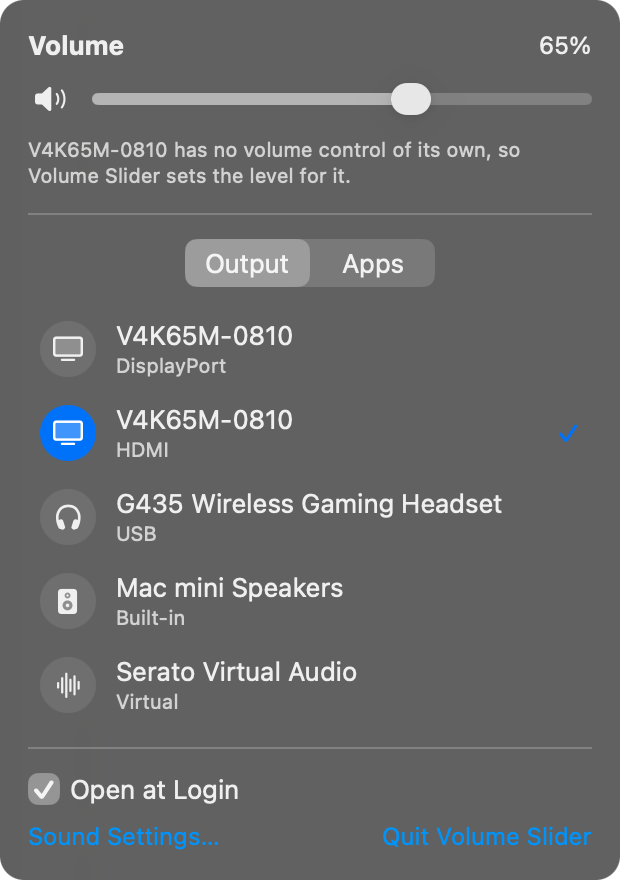
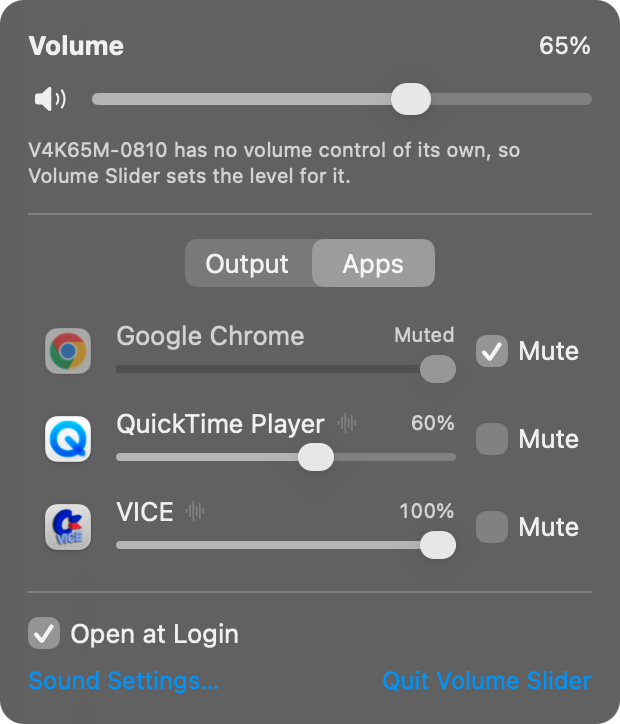
When a Mac plays sound through a TV or monitor over HDMI or DisplayPort, macOS greys out the volume slider and the volume keys show a “not available” symbol. Volume Slider is a small menu bar app that replaces the Mac's Sound menu. Every output gets a working volume slider, TVs included. You can switch outputs with one click and give each app its own volume and mute, like the Windows volume mixer.
About 1.5 MB · macOS Sonoma 14.4 or later · Apple Silicon and Intel · Signed and notarized by Apple. Installation steps are below.
Download & installSet it up in under a minute
Set it up in under a minute
Drag to Applications
In the window that opens, drag Volume Slider onto the Applications folder.
Open it
Double-click Volume Slider in Applications. It's notarized by Apple, so it opens with no warning. A speaker icon appears in the menu bar.
Click Allow
The first time you pick a TV or change an app's sound, macOS asks to let it record system audio. Click Allow. Sound is only passed through, never recorded or saved.
Hide the old Sound icon
- Optional: open System Settings, click Menu Bar (called Control Center on Sonoma and Sequoia), find Sound and turn it off
If the TV or app sliders don't work
- Click Open Privacy Settings in the panel and turn on Volume Slider under System Audio Recording Only
Uninstall
- Click the menu bar icon, click Quit Volume Slider, then drag it from Applications to the Trash
FeaturesEverything the Mac's Sound menu should do
Everything the Mac's Sound menu should do
Volume for TVs and monitors
- HDMI and DisplayPort outputs that macOS won't control get a working slider and mute button
A volume mixer, like Windows
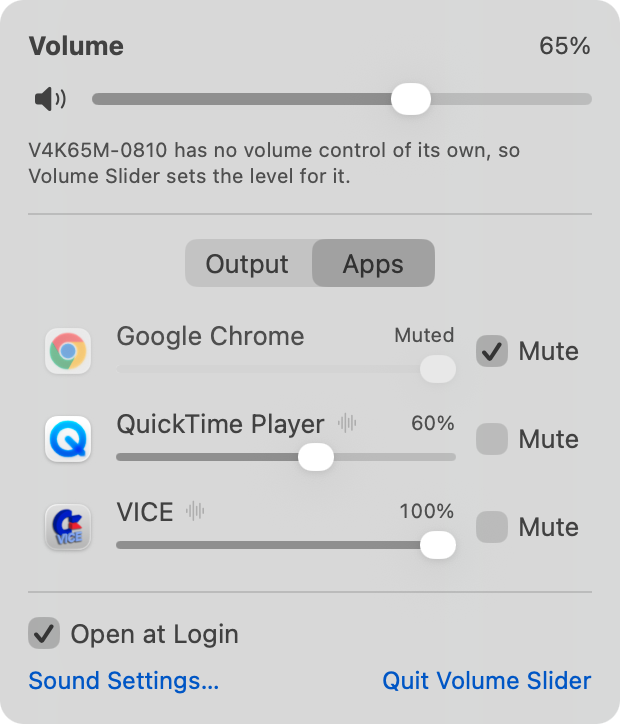
- The Apps tab lists every app playing sound, each with its own slider, a “playing” indicator and a Mute checkbox
- Turn a game down under your music without touching anything else
- Browsers and their helper processes are grouped under the app's own name and icon
One-click output picker
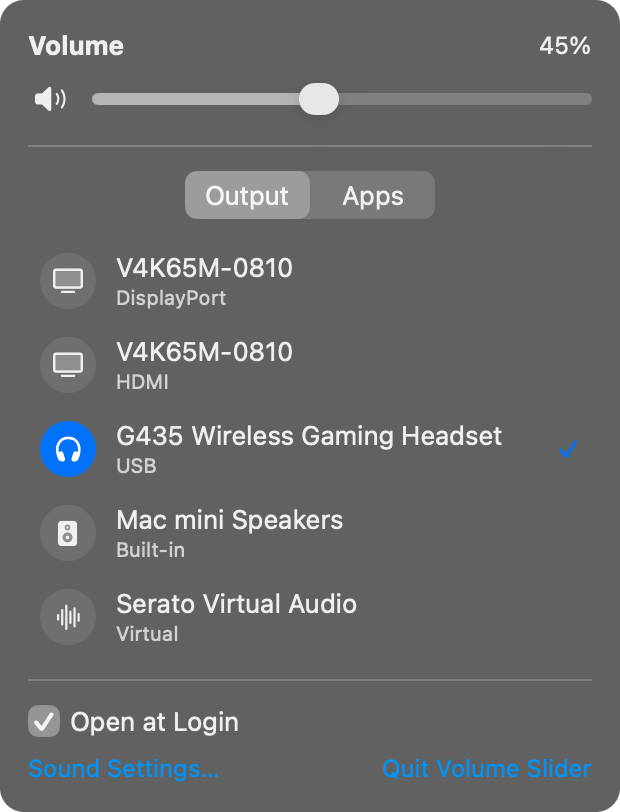
- Every speaker, headset, TV and audio interface, with its connection type: HDMI, DisplayPort, USB, Bluetooth, AirPlay or Built-in
- Two TVs with the same name are easy to tell apart
Normal devices work normally
- Headphones, speakers and USB audio with their own volume are controlled directly and stay in sync with the volume keys
Remembers everything
- Each output keeps its own volume and mute
- Each app's level and mute are kept, even after the app or the Mac restarts
Tiny and private
- Lives in the menu bar, with no Dock icon and no windows; opens at login
- No accounts, no internet connection, no analytics. Sound never leaves the Mac
Good to knowHow it works with your TV
How it works with your TV
Use the slider on TVs
- On TVs, the keyboard volume keys still don't work; use the slider. On headphones and speakers the keys work as usual
Set the TV once
- Volume Slider's level sits on top of the TV's own volume. Set the TV to a comfortable maximum with its remote, then use the slider
If you quit it
- The TV goes back to its own volume, and muted or turned-down apps play at full volume until you reopen Volume Slider
How it's builtSwift, SwiftUI and Core Audio process taps
Swift, SwiftUI and Core Audio process taps
Why TVs need help
A TV doesn't accept volume commands from the computer over HDMI, so Volume Slider adjusts the sound itself before it reaches the TV.
Process taps
Apple's Core Audio process taps (macOS 14.4) take the audio headed for the TV, mute the original and play it back at your level, with smooth fades to avoid clicks.
Per-app volume
Each turned-down app gets its own tap and gain, mixed with everything else. Apps left at 100% aren't touched at all.
App
Swift and SwiftUI menu bar app, universal for Apple Silicon and Intel, hardened runtime, Developer ID signed and notarized.
Status: version 1.2, free. Built for macOS Tahoe 26 and works on macOS Sonoma 14.4 or later.

HiFAi
The podcast app that removes the ads

DEFCON Todo
The to-do list ranked by urgency

Clubtronix
Music-video show system for venues

YOOTUBE
YouTube, minus the noise

SkateFM
Skate jams 24/7 with live DJs

R1NK
The all-in-one rink platform

QuantiphAi Vault
Lets your AI sign in for you

Cupertinoo Clock
The AM/PM widget for iPhone

FlexAi
A Plex player for Mac, Apple TV and iPhone

Switchboard
400+ Mac settings in one app
Consolodator
The same projects on every Mac

File Explorer
Windows 10 File Explorer, on your Mac
Get in touch
Questions or ideas about our apps? Want a HiFAi TestFlight invite? Email us.
mail@quantiph.ai